
Las noticias de Huelva, al momento: alerts on your mobile and all the ways to follow ElOnubense
You can follow what's happening in Huelva on Telegram, Instagram and Facebook. We explain how to sign up on each one, how to receive mobile alerts only about what interests you, and how to have ElOnubense on your mobile as an app.
Redacción ·
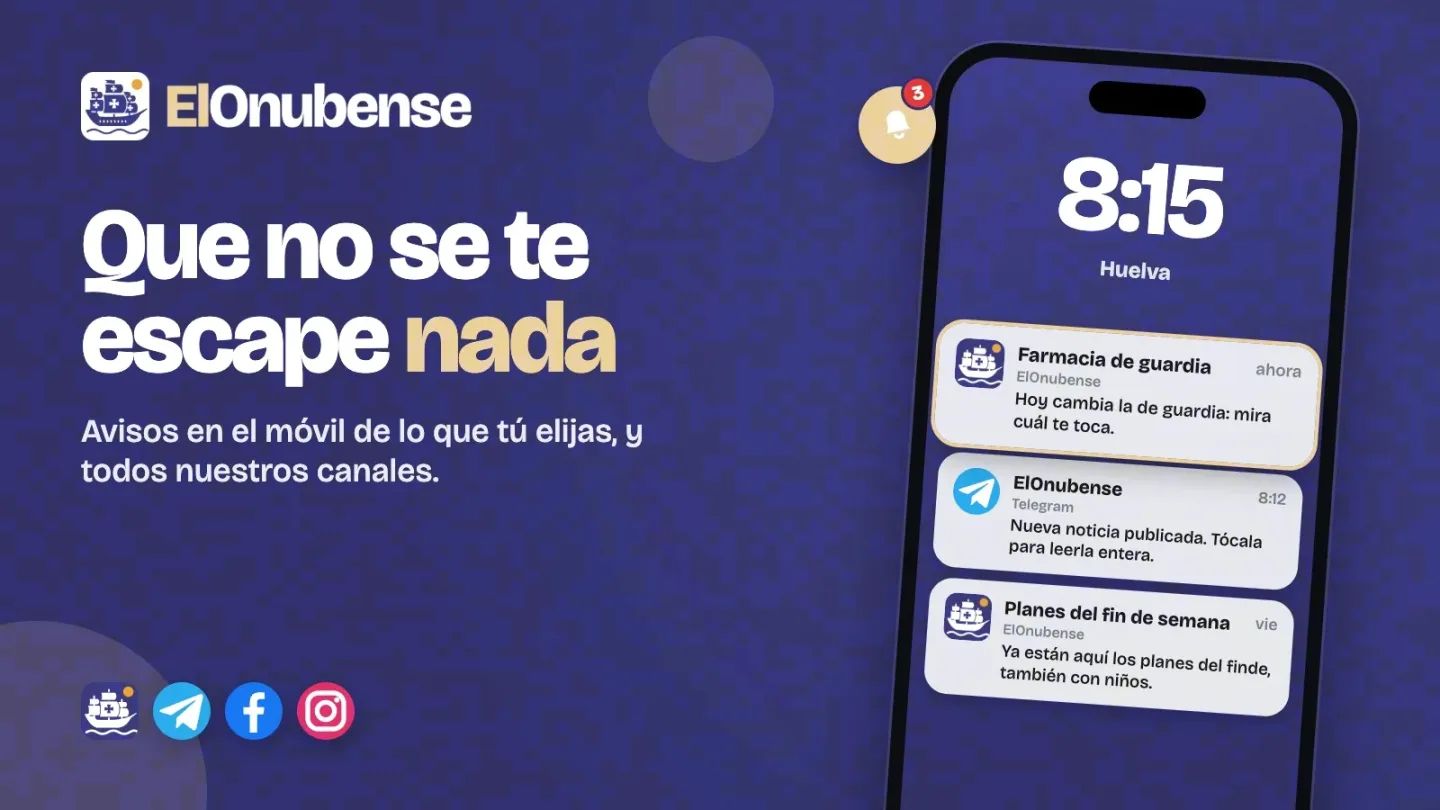
From the city to the Sierra de Aracena, from Doñana to the Costa de Huelva and the Andévalo: what's happening in the province, as soon as it happens.
There are many ways to follow ElOnubense, and you don't need to use them all: choose the one you use most on your mobile. Here they all are, with their link and how to do it.
Telegram: all the news, as soon as it's published
On the ElOnubense channel on Telegram, each news story appears the moment we publish it: the headline, a short summary and the link to read it in full. You get them all and in order, not just the ones a network decides to show you. To sign up, open the link and tap "Join". Here too, no one sees your number.
Join the ElOnubense channel on Telegram (opens outside the portal)
Mobile alerts, only about what interests you
ElOnubense can also alert you on your mobile, like any other notification, about what you choose and nothing else. You don't need an account or to give your email, and you can turn it off whenever you want. For example:
- The on-duty pharmacy, when it changes.
- AEMET alerts for wind, rain, heat or storms.
- Each morning's weather, in a summary.
- Announced water cuts.
- Scheduled power cuts.
- Weekend plans and plans with kids, every Friday.
- New concerts added to the agenda.
- Breaking news, only when something happens that can't wait.
And the news on the topics you choose: politics, incidents, courts, economy and employment, health, education, sports, culture and festivals.
How to do it: in the section that interests you, tap the "Notify me…" button (in Pharmacies, for example), and when your mobile asks if you allow it to notify you, tap "Allow". On the "My alerts" page you can see everything you have activated, choose for how long (always, today only, three days, a week or a month) and turn it off. It's in the bell at the top on mobile and at the foot of any page.
On iPhone there's one step first: alerts only arrive if ElOnubense is on the home screen (we explain that just below) and you open it from its icon. iOS 16.4 or later is required. From 23:00 to 8:00 no automatic alerts arrive, except the most serious weather alerts.
ElOnubense on your home screen, like an app
Without downloading anything from any store, you can put ElOnubense on your mobile's home screen: it opens with one tap, without the browser bar, like any other application.
- On iPhone, with Safari: open elonubense.com, tap "Share" and then "Add to Home Screen".
- On Android, with Chrome: open elonubense.com, tap the three dots at the top right and then "Install" (or "Add to Home screen").
- On a Samsung: "≡" menu at the bottom, "Add page to" and "Home screen".
In our guide you have it step by step, with pictures, for each mobile.
Facebook and Instagram
On Facebook we publish the day's news and the useful stuff: weekend plans, the weather and employment. Tap "Follow" and they'll start showing up.
On Instagram, @elonubensecom, we tell Huelva in images: the plans, what's coming and what you can't miss.
ElOnubense on Facebook (opens outside the portal)
ElOnubense on Instagram (opens outside the portal)
On Google, ElOnubense first
Google lets you choose your preferred outlets so they appear first in top stories when you search for something. If you mark ElOnubense, when you search for something about Huelva you'll see ours first. It takes a minute, with your Google account.
Choose ElOnubense on Google (opens outside the portal)
And if you use a news reader, our RSS feed is at elonubense.com/rss.
Breaking news from News, on your phone
An alert only when something can't wait. Free, no account needed.
On iPhone, alerts only arrive if you first add ElOnubense to your Home Screen. How to do it, step by step
This browser can't receive alerts. Try another one, such as Chrome or Safari.
You've blocked alerts from ElOnubense in this browser. You can turn them back on in its settings. How to do it, step by step
Only what can't wait. Change or remove it in my alerts
Shall we let you know what matters?
Phone alerts
On iPhone, alerts only arrive if you first add ElOnubense to your Home Screen. How to do it, step by step
This browser can't receive alerts. Try another one, such as Chrome or Safari.
You've blocked alerts from ElOnubense in this browser. You can turn them back on in its settings. How to do it, step by step